UP Switch

for Android

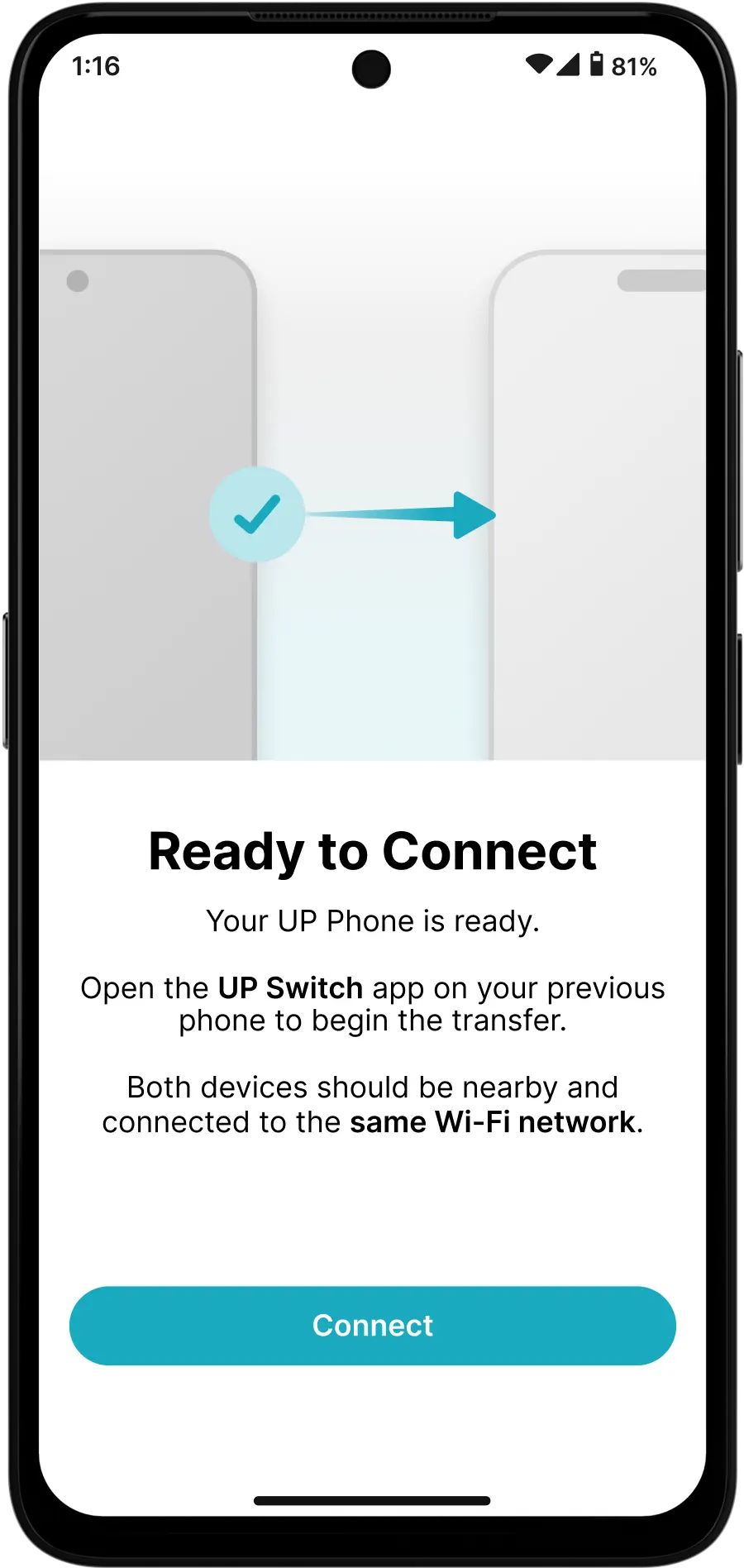
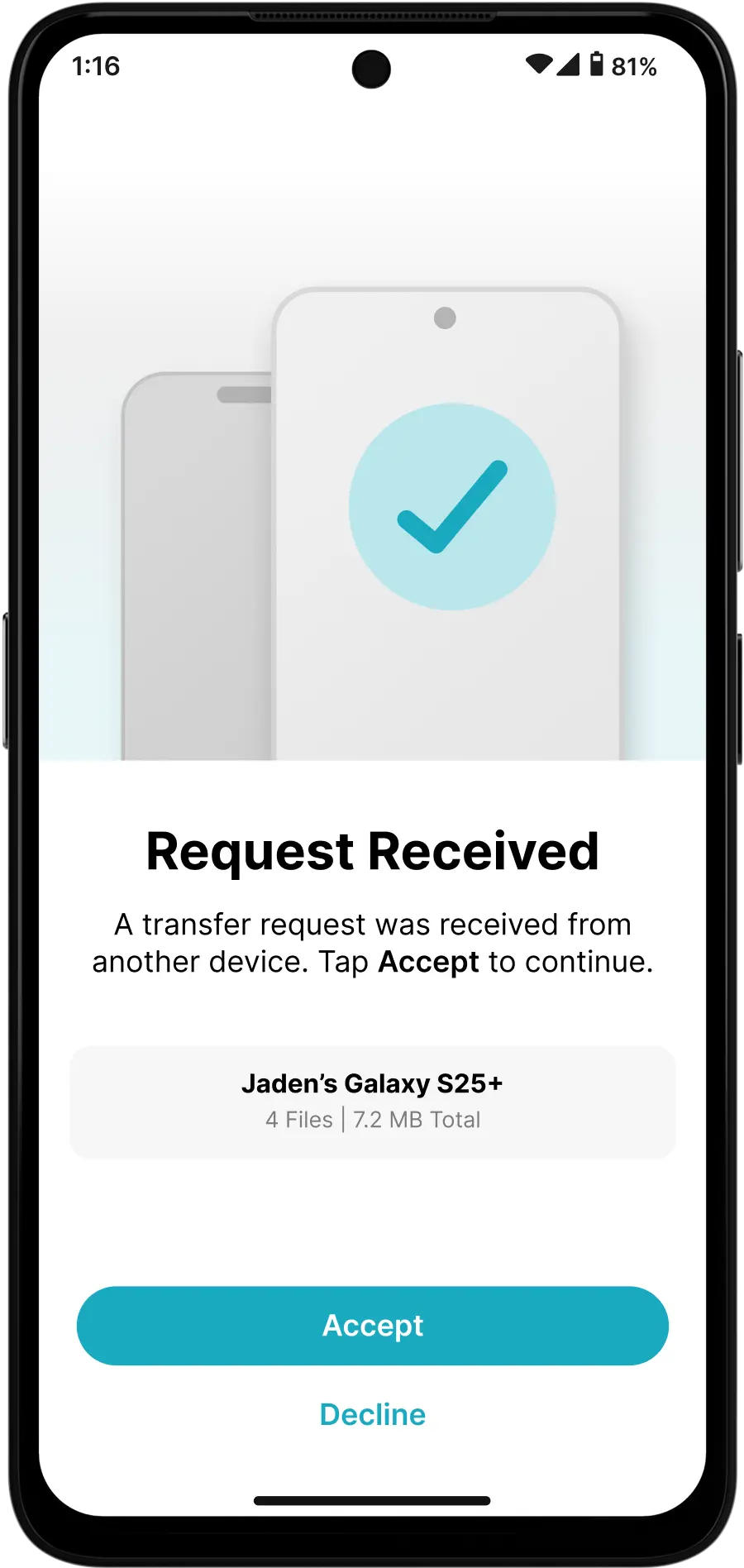
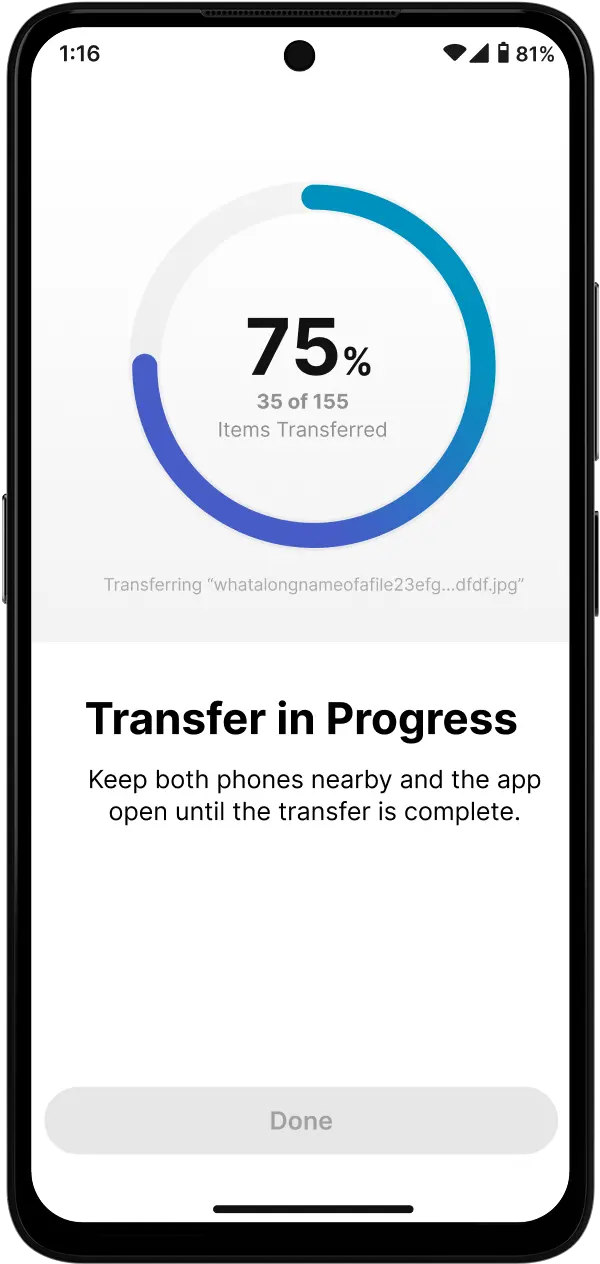
Transfer your data to your new UP Phone.

Need Help Installing UP Switch?

Find step-by-step instructions or visit our Support Center for more guidance.

Transfer Passwords & Contacts

Fast, simple, and secure — in three easy steps.

Scroll to Top

UP Switch Installation Guide for Android

This guide walks you through downloading and installing UP Switch on your Android device. Follow the steps to set up UP Switch and begin transferring your data between Android and iOS. If you run into any issues, use this guide to help troubleshoot. 


Step 1: Download the UP Switch APK

If you’ve already downloaded the file, you can skip this step.

Step 2: Allow Installation from Unknown Sources

Why Enable Installation from Unknown Sources?
To install UP Switch directly from our website, your Android device needs permission to install apps from unknown sources. This setting allows you to install trusted apps safely, even if they’re not from the Play Store, while still keeping your device protected from unapproved or harmful downloads.


  • Open Settings: Swipe down and tap the gear icon, or open Settings from your app drawer.
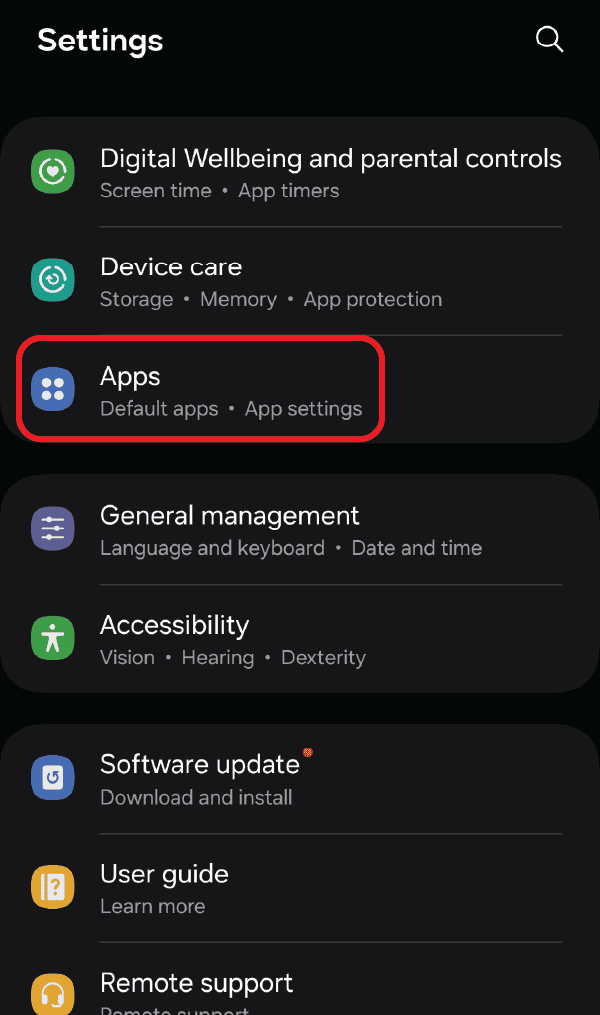
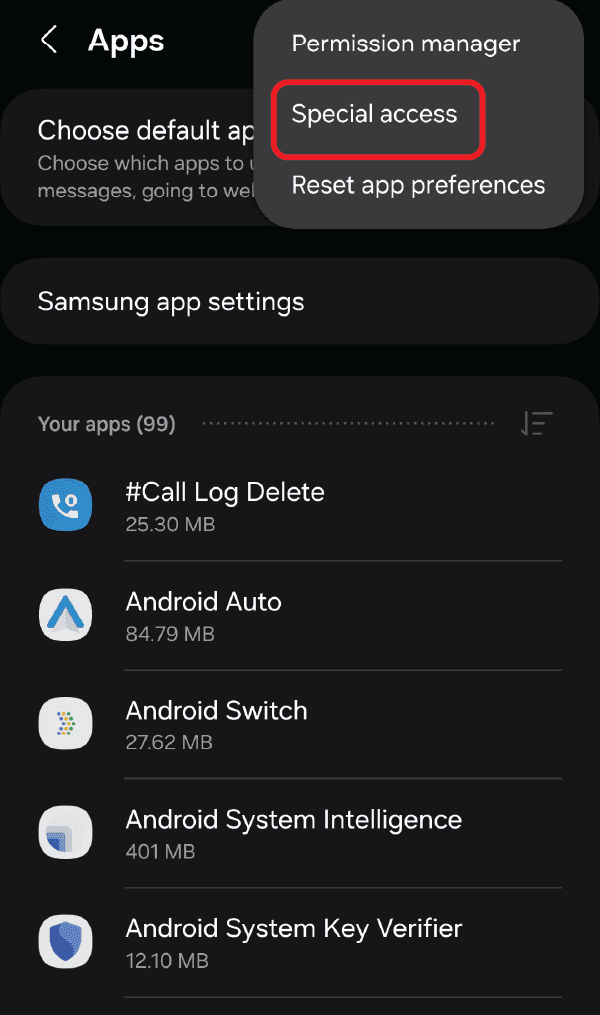
  • Go to Apps: Scroll down or search for Apps and tap it.
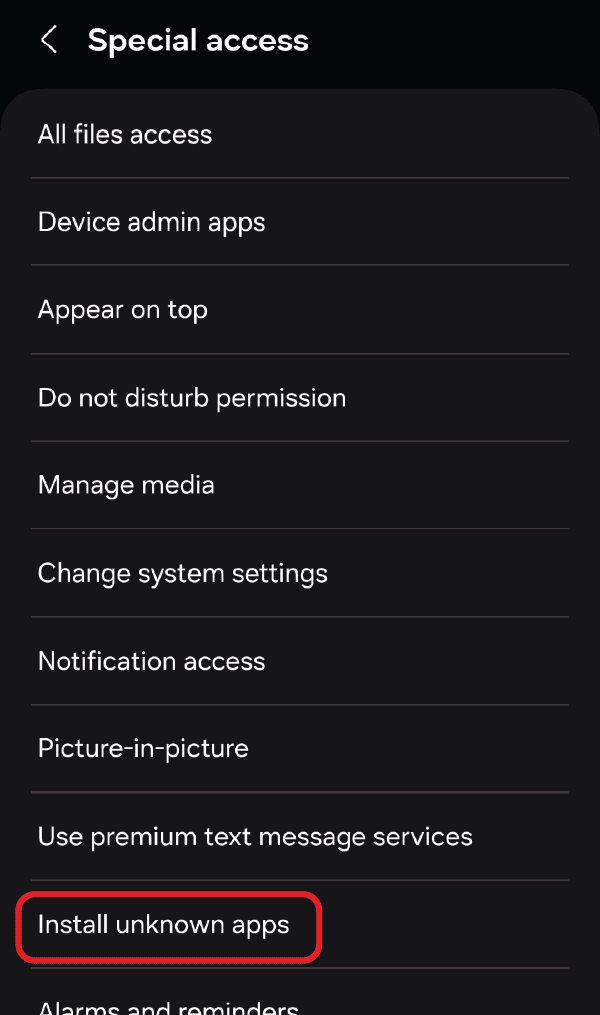
  • Special Access: Tap Special access. If you don’t see it, tap Advanced.
  • Install unknown apps: Select Install unknown apps.
  • Choose your download source: Tap the app you used to download the APK (Chrome, Firefox, or Files).
  • Allow Installation: Turn on Allow from this source.

Step 3: Disable Google Play Protect

To prevent Google’s security system from blocking the installation of this external app, please temporarily disable Play Protect.

Step 4: Install the UP Switch APK

  • Open your file manager: Open Files, My Files, or your phone’s file manager from the app drawer.
  • Go to Downloads: Open the Downloads folder.
  • Find the APK: Tap the UP Switch APK file you downloaded. If you don’t see it, search for it in your file manager.
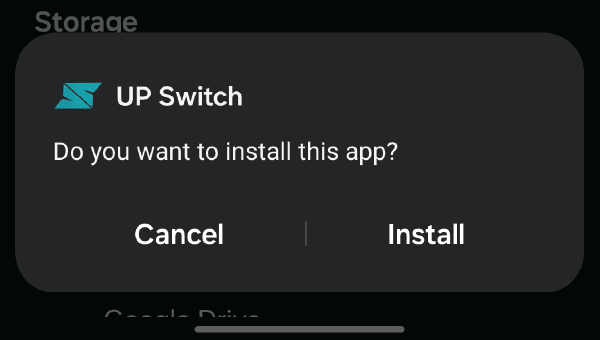
  • Install: When prompted, tap Install.
  • Finish: Wait for the installation to complete. You’ll see a confirmation once it’s done.

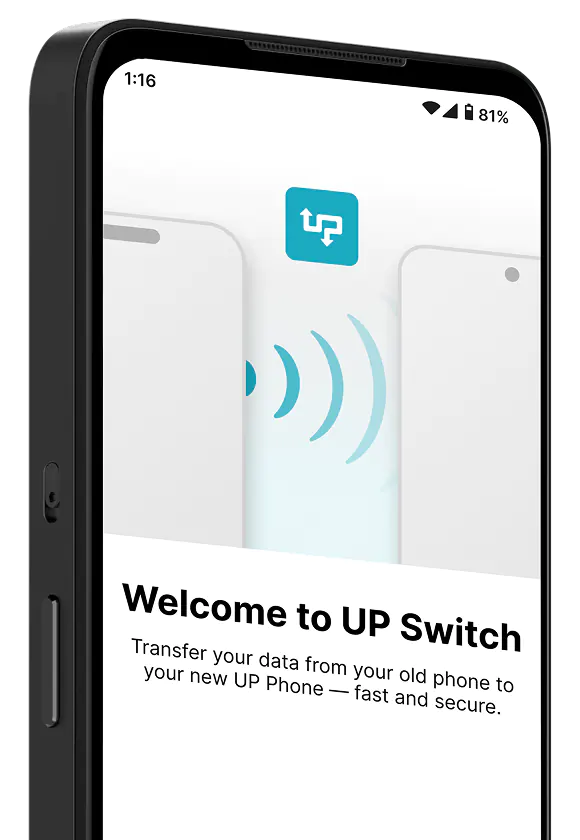
Once installed, you’ll find UP Switch in your app drawer. Open it and follow the on-screen steps to begin migrating your data.